Yes, Google supports multiple Business Profiles, and each one operates as a separate listing tied to its own address, category and verification status. If you’re managing fewer than 10 sites, add and verify them individually through the dashboard. Hit 10 or more, and you need a spreadsheet-based bulk upload with a request for bulk verification. Location Groups and store codes keep everything organised from there.
TL;DR:
- Managing fewer than 10 locations can be handled individually, but reaching 10 or more requires bulk upload and verification through a spreadsheet.
- Accurate address formatting, correct categorization, store codes, and checking for existing listings beforehand help prevent delays and duplicate issues during setup.
- Organized account hierarchy with role-based access and location groups improves security and scalability for multi-site operations.
- Verification methods vary by location but often fail due to address mismatches, postal delays, or unreachable owners, requiring procedural fixes.
- For large portfolios, API integration and professional management services can streamline updates, maintain data quality, and reduce operational overhead.
Table of Contents
- Can a business have multiple locations on Google Business?
- How do you add a single extra location step by step?
- How do you bulk add and verify 10 or more locations?
- Organise locations and delegate access safely
- Prevent duplicates and use store codes effectively
- What are the verification methods and why do they fail?
- Manage at scale: Business Profile APIs and automation
- Optimise each location: categories, pages and reviews
- How do you maintain data quality across many profiles?
- Publisher perspective: why a managed approach makes sense at scale
- How Semlocal can help with multiple Google Business Profile locations
- Sources
Can a business have multiple locations on Google Business?
Every physical branch, service area, or online-only operation that meets Google’s eligibility rules gets its own Business Profile. There’s no single “franchise account” that covers ten shops under one listing. Each site is a distinct entity with its own name, address, phone number, category and reviews, even when they all trade under the same brand.
The eligibility rules split into three broad types. Storefront businesses have a physical address customers can visit, like a café or a dentist’s surgery. Service-area businesses travel to the customer rather than the other way round (plumbers, mobile groomers, locksmiths) and can hide their exact address while still showing a service radius. Online-only businesses without any customer-facing location generally don’t qualify for a standard profile unless they meet specific criteria Google sets for brands and online-only sellers.
Existing place IDs complicate matters more than most operators expect. If a customer, a former employee, or a data aggregator has already created a listing for your address, that listing exists whether you claimed it or not. Adding a “new” location without checking first often creates a duplicate, which triggers the very conflicts covered later in this guide. Before adding anything, search Google Maps for the exact address and business name to confirm nothing already exists.
Accuracy at this stage isn’t a box-ticking exercise. Google’s own guidance is explicit that the primary category must represent the main business activity rather than a keyword grab, and mismatched addresses are one of the most common reasons verification stalls before it even starts. Get the name, address and category right at creation, and you avoid rework later. Get them wrong, and every subsequent step, from verification to Location Group assignment, inherits the error.
How do you add a single extra location step by step?
Adding one new branch is straightforward if you follow the sequence in order rather than skipping ahead to verification. Business Profile Manager is the tool Google recommends for this, and it’s the right choice unless you’re managing dozens of sites through code.
- Sign in to your Google Business Profile account at business.google.com using the account that already manages your existing locations.
- Navigate to the locations view. Depending on your account structure, this appears as “Businesses” or “Locations” in the left-hand menu.
- Select “Add location” and choose the single-location option rather than the bulk import path.
- Search for the business first. Type the exact name and address to check whether a listing already exists before creating a new one.
- Enter the required fields. Business name (exactly as it trades, no marketing taglines), full street address, phone number, primary category, secondary categories if relevant, opening hours, and website URL.
- Format the address consistently with how it appears on your website and other citations. Inconsistent abbreviations (“St” versus “Street”) are a common cause of verification friction.
- Choose a verification method from whatever options Google offers for that address (postcard, phone, email, or instant verification for some categories).
- Submit and monitor. Verification can take anywhere from a few minutes to several weeks depending on the method.
Before you submit, run a quick preflight check: does the category match what competitors in the same trade use, is the phone number a local or trackable line rather than a call centre number, and does the address match Royal Mail or equivalent postal formatting exactly? Small formatting mismatches are the single biggest cause of unnecessary delay at this stage, and catching them before submission saves a resubmission cycle that can add weeks.
Pro Tip: Screenshot your submission once it’s in. If verification stalls past the expected window, you’ll want proof of exactly what you entered and when, especially if you end up raising a support case.
How do you bulk add and verify 10 or more locations?
Once you’re managing 10 or more sites, Google’s own bulk management workflow applies, and trying to add each one manually wastes time you don’t have. The bulk path relies on three things: a Business Group to hold the locations, a correctly formatted spreadsheet, and a formal bulk verification request submitted once the data is clean.
Setting up the Business Group. Create or confirm you have a Business Group (sometimes shown as a “location group”) under your Business Profile account. This is the container that will hold every bulk-uploaded location and determines who on your team can see and edit them.
Building the spreadsheet. Google provides a downloadable template, and deviating from its column structure is the fastest way to generate validation errors. At minimum, expect to populate:
- Store code (a unique identifier for every single location, non-negotiable for chains)
- Business name exactly as it should appear publicly
- Full address, split into the individual fields the template requests rather than one combined string
- Primary category and any secondary categories
- Phone number and website URL
- Opening hours, formatted consistently across every row
Uploading and resolving errors. When you upload the completed sheet, Google validates every row and flags problems, most commonly duplicate detection against existing listings, malformed postcodes, or category names that don’t match Google’s accepted category list. Locations with errors won’t proceed to verification until fixed and re-uploaded.
Requesting bulk verification. Once every row uploads cleanly, you submit a formal request asking Google to verify the batch. Google reviews ownership signals across the group rather than location by location, which is faster than 50 individual verification requests but does mean errors in one row can hold up review of the whole batch in some cases.
The single biggest cause of delay isn’t Google’s review speed. It’s dirty data submitted in the first place. Preflighting the spreadsheet before upload, checking every address against a postal validation tool, confirming no store code repeats, and matching categories to Google’s approved list, removes the majority of rejection cycles before they happen.
Pro Tip: Run a duplicate check on your own spreadsheet before uploading, not just against Google’s existing listings. Franchise spreadsheets built from multiple regional managers’ data almost always contain at least one accidental duplicate row before anyone spots it.
If you’re inheriting a franchise network with locations already scattered across individually claimed profiles, budget extra time to consolidate ownership before the bulk workflow will run cleanly, since Google needs to resolve who controls each existing listing first.
Organise locations and delegate access safely
Structure matters more than most managers realise until the wrong person deletes the wrong listing. Google’s account hierarchy gives you three layers to work with, and using them properly is what separates a franchise operation that scales smoothly from one that spends its life firefighting access requests.
Organisation accounts sit at the top and represent the legal entity that owns everything underneath. Location Groups sit below that and let you organise profiles by region, brand or category, so a franchise with 40 sites across three brands might run three groups rather than one unmanageable list. User Groups control who can see and edit which locations, and this is where most of the security value lives.
The practical benefit is granular access without shared logins. A regional manager overseeing the north of the country gets access to the North Location Group and nothing else. An external SEO agency gets manager-level access to specific groups, never full account ownership, and never your actual Google login credentials. This single change, moving from shared passwords to structured groups, is one of the more overlooked upgrades a growing business can make.
Governance around onboarding and offboarding matters just as much as the initial structure:
- Add new starters to the specific User Group matching their role, not the broader account
- Remove access the day someone leaves, not at the next quarterly review
- Audit who has owner-level access at least twice a year, since owner permissions are rarely revoked as often as they should be
- Keep one internal record of who holds access to which group, separate from Google’s own interface
Franchises and multi-brand operators benefit most from this structure because the alternative, a single shared login passed between regional managers over email, is both a security liability and an operational bottleneck the moment someone goes on leave.
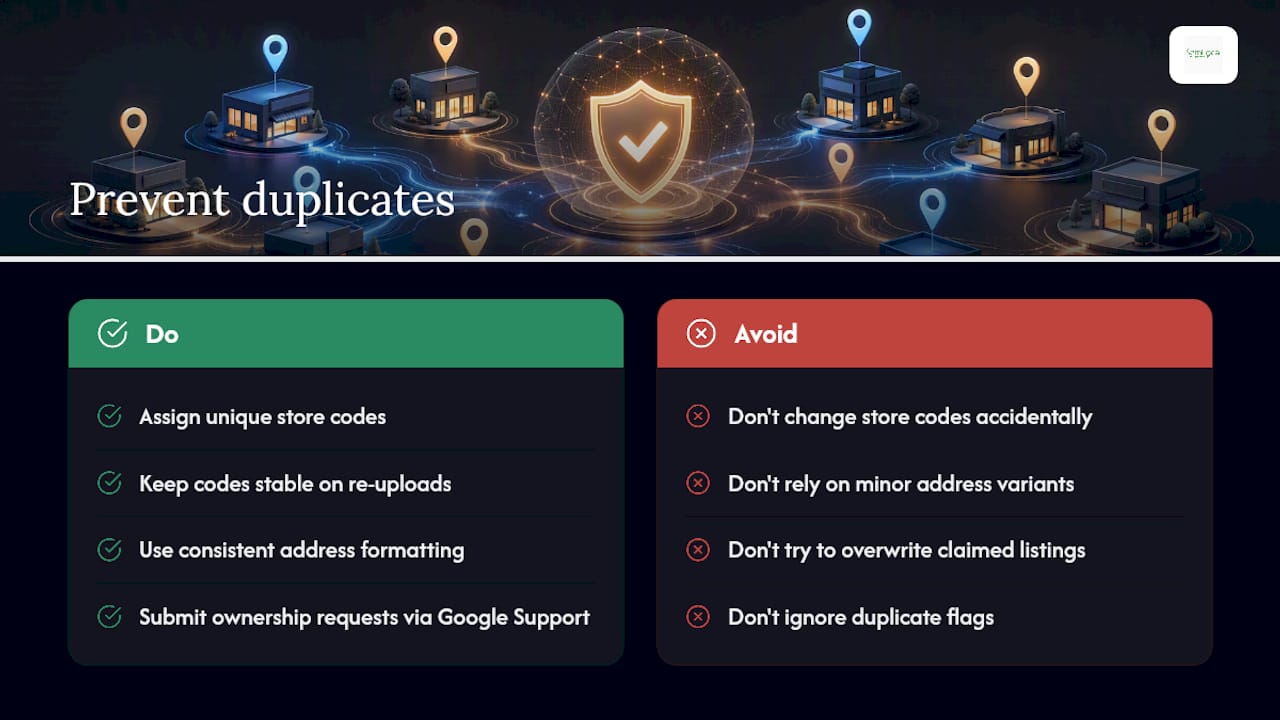
Prevent duplicates and use store codes effectively
Duplicate listings happen more often than most managers expect, usually because a location existed on Google before anyone in the business claimed it. A previous owner, a data aggregator, or even a customer using Google Maps’ “suggest an edit” feature can create a second entry for the same address. Google’s algorithm compares name, address and phone data across listings, and when two profiles look similar enough, it flags them as potential duplicates rather than publishing both.
The consequences aren’t cosmetic. A flagged duplicate can delay or block verification entirely, split your reviews across two listings, and confuse customers who land on the wrong version in Maps. For a franchise trying to bulk-verify 30 sites at once, a handful of duplicate flags can hold up the whole batch.
Store codes are the mechanism Google recommends to solve this at scale. Every row in your spreadsheet gets a unique code tied permanently to that physical location, so Google can distinguish “Branch 14, High Street” from a legacy listing at the same address even when the address text is nearly identical. Keep the code stable across every future upload; changing it accidentally on a re-upload is treated as a new location rather than an update to an existing one.
Address formatting consistency matters just as much. “12 High St” and “12 High Street” can register as different enough to avoid automatic duplicate detection, which sounds helpful until you realise it means two profiles for the same shop, both competing for the same searches.
When a genuine ownership conflict appears, usually a legacy listing claimed by a previous owner or an agency that no longer works with you, Google’s dashboard surfaces it as a duplicate or ownership dispute rather than letting you simply overwrite it. Resolving this requires a formal ownership request through Google’s support channel, not a quiet edit. It’s slower than fixing your own data, but it’s the only route that doesn’t risk losing the listing’s existing reviews and history.
What are the verification methods and why do they fail?
Verification exists to confirm that whoever controls the Business Profile actually controls the physical business, and Google offers several routes depending on category and location. Postcard verification remains the most common, mailing a code to the listed address that you enter online. Phone verification works for eligible categories and delivers a code via automated call or text. Email verification is available in limited cases, usually for businesses already verified through another Google product. Instant verification exists for a small subset of categories where Google can confirm ownership through other signals automatically.
Failures cluster around a few predictable causes. Postal delays are the most frequent complaint, since a postcard can sit in transit for two to three weeks depending on location, and requesting a second postcard restarts that clock. Address mismatches between what’s on the profile and what’s on official records (utility bills, lease documents, Companies House filings) trigger manual review rather than automatic approval. Unreachable owners cause problems when the phone number on file belongs to someone who’s left the business or when the postcard goes to an address no longer staffed during business hours.
The fixes are mostly procedural rather than technical:
- If a postcard hasn’t arrived after three weeks, request a resend rather than waiting indefinitely
- Match the address on the profile to a recent utility bill or business rates statement before submitting
- Use a phone number that’s actually staffed and check it isn’t diverting to voicemail during Google’s call attempt
- For a location where the original creator has left the business, submit a formal ownership request rather than attempting to create a second listing
Chains and franchises sometimes need a different route entirely. Google runs separate partner verification processes for larger networks, which can move faster than individual postcard verification once you’re set up as a recognised partner, though the onboarding for that status takes longer upfront.
Manage at scale: Business Profile APIs and automation
Once you’re past 50 or so locations, or you’re updating hours and details every week rather than every quarter, manual dashboard work stops being realistic. Google’s Business Profile APIs let you create, list, update and verify locations programmatically, plus pull performance insights without logging into the dashboard at all.
The practical use cases fall into a few clear categories:
- Batch updates, pushing a single change (a new phone number, a rebranded name) across dozens of locations in one call instead of dozens of manual edits
- Syncing opening hours automatically from a point-of-sale or booking system, so holiday closures update everywhere without a manager remembering to log in
- Review reporting, pulling review data into a central dashboard for multi-site brands who need one view rather than 40 separate logins
- Feeding location data into Google Ads, so location extensions and local campaigns stay accurate as branches open or close
Access runs through OAuth authentication, and Google enforces quotas on API calls, which matters if you’re planning frequent syncs across a large estate rather than occasional updates. API-based management earns its complexity when updates are frequent and systematic, thousands of locations, or a genuine need for real-time synchronisation with an existing POS or ERP system. Below that threshold, the dashboard and bulk spreadsheet workflow is faster to set up and cheaper to maintain.
Pro Tip: Don’t build API integration in-house unless you have a developer who’ll still be around in a year to maintain it. A surprising number of businesses build a working integration, then have nobody able to fix it when Google updates the API version.
If your business doesn’t have that kind of engineering capacity on staff, this is exactly the point where partnering with a specialist becomes cheaper than the alternative, either paying a developer to maintain code nobody else understands, or reverting to manual updates across dozens of listings every time something changes.
Optimise each location: categories, pages and reviews
A verified, correctly structured listing is the foundation. It isn’t the whole job. Every location still needs individual optimisation to actually rank and convert, and treating 40 branches identically wastes the advantage of having 40 separate listings in the first place.
Category selection deserves more attention than most managers give it. The primary category should describe exactly what that specific branch does, not the parent brand’s broadest possible description, and Google explicitly discourages using category fields as a keyword-stuffing opportunity. A branch that also offers a niche service the others don’t should reflect that in its secondary categories rather than forcing every location into an identical template.
Location-specific website pages matter more than many multi-site operators expect. A single “Locations” page listing 40 addresses in a table gives Google almost nothing to match against a local search. A dedicated page per branch, treated as a distinct asset with its own URL, address, embedded map and locally relevant content, gives that branch a real page to rank alongside its profile. If you’re building these on WordPress, the technical setup for location pages at scale is worth getting right early, since retrofitting 40 pages later is far slower than templating them from the start.
Per-location tasks that genuinely move the needle:
- Upload at least 10 recent, location-specific photos, not stock imagery shared across every branch
- Populate services and attributes accurately for that branch (wheelchair access, parking, specific services offered)
- Keep opening hours current, including holiday hours, since incorrect hours are a common driver of negative first impressions
- Respond to every review, positive and negative, within a few days, and respond as that specific branch rather than a generic head office voice
- Check NAP (name, address, phone) consistency between the profile and the branch’s own webpage every quarter
A local SEO checklist tailored to UK businesses is a useful reference point if you want a repeatable audit format rather than reinventing the checklist for every branch review.
How do you maintain data quality across many profiles?
Ongoing maintenance is where most multi-location programmes quietly fail, not at setup. The fix starts with a single source of truth: one internal spreadsheet or system that holds the current, correct version of every location’s data, with changes flowing outward from there rather than being edited directly and inconsistently across 40 individual dashboards.
Audit cadence should be routine, not reactive. A quarterly check across every location for NAP consistency, correct opening hours, accurate categories, and up-to-date attributes catches drift before customers notice it. Waiting for a complaint to trigger a data check means you’ve already lost the enquiry.
Staged rollout matters when pushing changes across many locations at once. Update a small batch first, confirm nothing breaks or triggers unexpected review flags, then roll the change out to the rest rather than pushing every profile simultaneously.
The KPIs worth tracking are the ones tied to actual enquiries, not vanity numbers:
- Calls and direction requests per location, tracked monthly
- Verification and update turnaround time across the estate
- Review response time and average rating trend per branch
- Search visibility for branded and local category terms at the individual location level
Publisher perspective: why a managed approach makes sense at scale
Here’s what most guides won’t tell you: the technical steps for adding a location aren’t where multi-site operators go wrong. It’s the governance layer, the store codes, the permission structures, the audit cadence, that gets skipped under time pressure, and it’s exactly where problems compound month after month.
Semlocal exists because most business owners running five, twenty, or fifty locations don’t have the bandwidth to run quarterly NAP audits or babysit a bulk verification request that’s stalled for three weeks. That’s not a criticism. It’s a resourcing reality, and it’s precisely the gap a managed Google Business Profile service is built to close.
The decision point is simpler than it looks. If you’re managing under 10 locations with stable data and no API needs, in-house management through the dashboard works fine. Once you’re past that threshold, running bulk verification, needing API integration, or managing permissions across multiple regional managers, the operational overhead usually outweighs the cost of bringing in a specialist. Ask yourself three questions: do you have someone who can preflight a spreadsheet without errors, does anyone own the quarterly audit, and can you resolve a duplicate dispute without it derailing a week. If the answer to any of those is no, that’s your signal.
— Geoff
How Semlocal can help with multiple Google Business Profile locations
Running the bulk verification workflow yourself, chasing postcards, resolving duplicate flags, and keeping 40 spreadsheets in sync, costs real management hours every month. Semlocal is the alternative to handling that in-house: our team runs the entire Google Business Profile lifecycle for franchises and multi-site operators, from initial bulk upload through to ongoing data governance, so nothing stalls waiting for someone internally to find the time.
Our Google Business Profile Manager service covers exactly the ground this guide has walked through: bulk verification support so batches don’t sit rejected for weeks, GMB Manager tools for ongoing multi-location oversight, and where the scale justifies it, API integration for real-time syncing with your existing systems. We also build the location-specific pages covered above and enforce the store code and category discipline that keeps duplicates from creeping back in.
If you’re currently juggling more than 10 locations, or your last bulk verification request is still pending, get in touch for a free audit of your current setup, or explore Local SEO support to see how visibility improves once the profile foundation is solid.