Use WhatsApp Business away messages, greeting messages and quick replies to automate the bulk of your customer communication: they cover confirmations, out-of-hours cover and common questions with no extra cost. Move to the Business API or managed automation once you need routing, CRM integration or volume beyond what one phone can handle. Remember that any marketing message still needs proper consent under UK data protection rules, covered later in this guide.
TL;DR:
- WhatsApp Business tools include away messages, greeting messages, and quick replies, each suited for different customer scenarios and scheduling options.
- Additional automation features like CRM integration or routing are necessary when message volume increases or more complex workflows are required.
- Proper customer consent is crucial for marketing messages, requiring explicit opt-in and clear opt-out options to comply with UK data protection rules.
- Most small businesses can manage with native tools unless facing high volume, requiring CRM integration, or needing automated booking and lead routing.
- Managed automation solutions are available for expansion, enabling AI-driven enquiry handling and better integration with existing business systems.
Table of Contents
- What the built-in auto-reply tools actually do
- Setting up away messages, greetings and quick replies step by step
- Templates and best practices that turn replies into bookings
- Compliance checklist: what PECR and GDPR mean for your messages
- When native tools are enough, and when to move beyond them
- How Semlocal helps you scale WhatsApp messaging further
- Official guides and the compliance checklist worth bookmarking
- Sources
- FAQ
What the built-in auto-reply tools actually do
The WhatsApp Business app gives you three native tools, each solving a different problem. Knowing which one fits your situation saves you from building the wrong setup and having to redo it later.
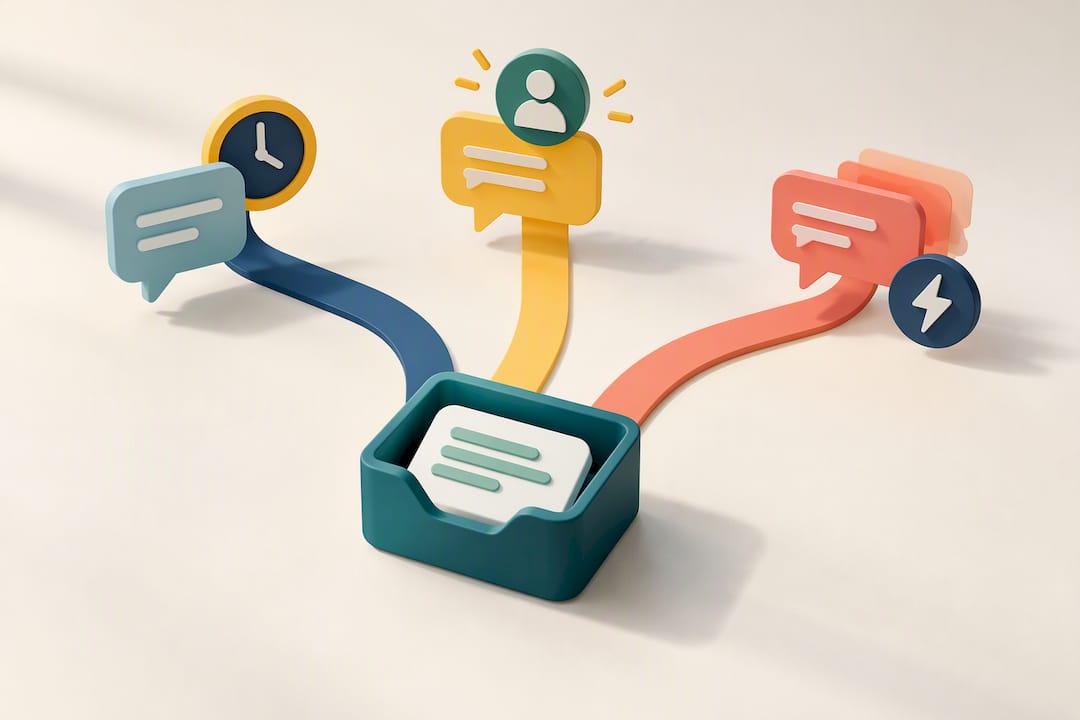
Away messages cover you outside business hours, during holidays, or whenever you can’t respond. You can schedule them to always send, follow a custom schedule, or trigger only outside your set business hours, and you can filter which contacts receive them.
Greeting messages fire automatically the first time someone messages you, or after 14 days of inactivity, making them ideal for welcoming new enquiries or re-engaging lapsed contacts, according to the WhatsApp Business resource library.
Quick replies are manual shortcuts for answers you type often, such as opening hours or pricing. You can store up to 50, and the app auto-generates defaults from your business profile fields once you’ve filled them in.
- Away messages: automated cover for out-of-hours or unavailable periods.
- Greeting messages: automatic welcome for new or returning contacts.
- Quick replies: manual shortcuts for repeated answers, capped at 50.
All three need an active internet connection, and behaviour can shift if you’re also using a Meta Business Agent alongside the app.
Setting up away messages, greetings and quick replies step by step
Each tool lives in the same place, so once you’ve found it the setup pattern repeats. Open WhatsApp Business, tap the three dots or Settings, then Business tools, where Away Message, Greeting Message and Quick Replies all sit together.
- Open Business tools and select the feature you want to configure.
- Toggle it on using the switch at the top of the screen.
- Write or edit your message text in the box provided.
- Set the schedule: Always send, a Custom schedule, or Outside of business hours for away messages, as detailed by the WhatsApp Help Centre.
- Choose recipients: Everyone, Everyone not in address book, Everyone except a selected list, or Only send to a selected list.
- Save your changes and send a test message from another number to confirm it fires correctly.
For quick replies, the process is similar but adds a shortcut step: tap Quick Replies, then the plus icon, type your message, and assign a shortcut such as “/hours” so it’s easy to recall mid-conversation, per the WhatsApp Help Centre’s quick replies guide. Completing your business profile fields first means the app generates useful defaults automatically, cutting setup time.
Platform behaviour varies slightly. Android and iOS both support the full feature set, but WhatsApp Web and Desktop have narrower support, particularly for attaching media to quick replies, so build and edit these on your phone where possible.
Pro Tip: Set your away message recipients to “Everyone not in address book” so cold leads get an instant response while your regulars receive a more personal, unscheduled reply.
If a message isn’t firing, work through the basics first: confirm the toggle is switched on, check your business hours are set correctly if using the “outside business hours” schedule, update the app to the latest version, and restart your device if settings appear stuck.
Templates and best practices that turn replies into bookings
A good auto reply does three things: it sets expectations, gives the customer a next step, and stays short enough to read in one glance. Messages that ramble or leave the customer unsure what happens next tend to generate follow-up questions instead of solving anything.
A few templates worth adapting:
- Greeting: “Thanks for messaging [business name]. We reply within [timeframe]. Let us know your name and what you need help with.”
- Out-of-hours away message: “We’re closed until [time/day]. Leave your name and query and we’ll reply first thing.”
- Lead capture: “To get you a quote, please share your name, the service you need, and a preferred time for us to call.”
- Booking confirmation: “You’re booked for [date/time]. Reply STOP if you need to reschedule.”
A hair salon might use the greeting to confirm services offered, while a plumber’s away message could ask for the postcode and issue so the callback is faster once someone’s free. A hotel’s quick reply could cover check-in times and parking in one line.
A well-completed business profile helps the app auto-generate useful quick replies covering hours and address, according to the WhatsApp Business resource library, which removes a chunk of manual setup for common questions.
The most common mistakes: writing paragraphs instead of a sentence or two, forgetting to state what happens next, and sending marketing-style content without recording that the customer opted in. For more worked examples of concise, compliant wording across a full enquiry journey, see this customer enquiry workflow guide.
Compliance checklist: what PECR and GDPR mean for your messages
Automated replies confirming an existing enquiry are generally fine. Marketing messages are a different matter, and this is where many small businesses trip up.
The ICO’s guidance on electronic marketing is clear that holding a customer’s number doesn’t give you permission to message them for marketing purposes. Consent must be specific to WhatsApp, not assumed from an email opt-in, and it must be as easy to withdraw as it was to give.
Simply holding a phone number does not grant permission to send marketing over a channel such as WhatsApp; consent must be distinct and clearly explained.
Guidance from the ICO
Practical steps to stay compliant:
- Get an explicit opt-in naming WhatsApp specifically, not a general marketing tick-box.
- Keep a record of when and how each customer consented.
- Include a simple opt-out instruction, such as replying STOP, in ongoing messages.
- Treat corporate subscriber contacts differently from individuals, since B2B rules carry fewer restrictions.
A WhatsApp GDPR checklist for small businesses expands on each of these points if you want a fuller reference before you launch a campaign.
When native tools are enough, and when to move beyond them
Away messages, greetings and quick replies handle most small businesses comfortably. The signal to upgrade is friction, not ambition: growing daily message volume, the need to route enquiries to different staff, two-way booking automation, or a requirement to sync conversations with a CRM or calendar.
Before switching, check your integration needs against a short list: does your CRM need conversation data automatically, do you need appointment slots booked without manual input, and can your team keep up with handover from automated replies to a real person. If the answer to any of those is no, native tools remain the sensible choice for now.
— Geoff
How Semlocal helps you scale WhatsApp messaging further
Once native tools start showing their limits, the jump doesn’t have to mean juggling multiple disconnected apps. Managed automation can be built around your actual workflow, not a generic bot dropped into WhatsApp.
Our services cover the gap between simple auto replies and full customer handling:
- AI Receptionist and AI Sales Rep for round-the-clock enquiry handling that hands over to your team when needed.
- AI SMS Agent and Missed Call Text Back for capturing leads the moment they make contact.
- AI Call Handling and AI Lead Generation for routing and qualifying enquiries before they reach your calendar.
The result is fewer missed leads, bookings that happen without manual chasing, and messaging data that flows into your existing CRM. If your WhatsApp volume has outgrown quick replies, visit our AI Receptionist page or book a discovery call to see what a managed setup would look like for your business.
Official guides and the compliance checklist worth bookmarking
- WhatsApp Help Centre: away messages, for exact schedule and recipient steps.
- WhatsApp Help Centre: quick replies, for shortcut setup and the 50-reply limit.
- ICO guidance on PECR, for consent rules before sending marketing messages.
- Semlocal’s WhatsApp GDPR checklist, for a practical six-step compliance walkthrough.
- A marketing automation checklist for SMBs for wider automation planning beyond WhatsApp.
Sources
- Small business: use the WhatsApp Business app — WhatsApp Business resource library
- How to use away messages — WhatsApp Help Centre
- How to use quick replies — WhatsApp Help Centre
- Direct marketing and PECR guidance — ICO
FAQ
Can I set up automated WhatsApp messages for my business?
Yes, the free WhatsApp Business app includes away messages, greeting messages and quick replies built specifically for this purpose. You can configure schedules, recipient filters and message text directly from Business tools within the app.
Can I set up an automatic reply for my personal WhatsApp account?
The standard WhatsApp app doesn’t include away messages, greeting messages or quick replies, since these are Business app features. Switching to WhatsApp Business, which is also free, gives you access to the same tools covered in this guide.
What is the best message for an auto reply on WhatsApp for businesses?
The best messages are short, state when you’ll respond, and give the customer a clear next step, such as sharing their name and query. A simple greeting like “Thanks for messaging us, we reply within one business day” outperforms a long, vague message.
How do I turn off auto reply in WhatsApp Business?
Go to Business tools, select the away message or greeting message you want to disable, and switch the toggle off. Your saved message text stays stored so you can reactivate it later without rewriting it.