Yes, you can set up auto replies on Facebook Messenger using Instant Reply and Away Message inside Meta Business Suite, which cost nothing and take minutes to configure. If you need keyword triggers, comment-to-Messenger conversion, or AI-driven routing, connect an approved Messenger Platform API tool once the native setup starts feeling limited. Begin native, then upgrade only when volume proves you need to.
TL;DR:
- Native Facebook Messenger auto-replies are free, quick to set up, and suitable for low to medium message volumes unless advanced routing or AI features are needed.
- Connecting an API tool becomes necessary only when message volume grows, requiring keyword triggers, comment-to-Messenger conversion, or AI-driven intent detection.
- The five-question FAQ limit often prompts businesses to upgrade, but tracking conversion rates from inquiries to bookings provides better guidance for scaling automation.
- Most auto-reply failures are easy to fix by checking toggle settings, business hours, permissions, and testing from a fresh account, avoiding common policy violations.
- Outsourcing Messenger automation setup to Semlocal offers a reliable alternative for busy service businesses seeking lead capture without managing complex configuration.
Table of Contents
- How do you set up a Facebook Messenger auto reply?
- When should you upgrade to an API-connected automation tool?
- What should your Messenger auto reply templates say?
- Why has your auto reply stopped working, and how do you fix it?
- Semlocal’s recommended rollout for Messenger auto replies
- Why most Messenger automation advice gets the order backwards
- Prefer to hand Messenger automation to someone else?
- Sources
- FAQ
How do you set up a Facebook Messenger auto reply?
Every native automation lives in one place: Meta Business Suite → Inbox → Automations. Meta groups Instant Reply, Away Message, and Saved FAQs under “Automated Responses.” Each one takes only a few taps to switch on, according to Meta’s own setup guidance.
Here’s the sequence that works, whether you’re on desktop or the mobile app:
- Open Automations. Log into Meta Business Suite, select your Page, and go to Inbox → Automations. On mobile, the same menu sits under the hamburger icon in the Meta Business Suite app.
- Turn on Instant Reply. This fires the moment someone messages your Page for the first time in a conversation. Meta’s help centre confirms Instant Reply is your Page’s true first-response automation and can be toggled on or off at any point from Page settings.
- Write your Instant Reply text. Keep it under roughly 300 characters where possible. Longer messages get cut off in the chat preview, so front-load the useful part: who you are, what happens next, and roughly how long a reply takes.
- Enable Away Message and set business hours. Away Message overrides Instant Reply outside your set hours, so define opening times accurately first. Get this wrong and customers get a “we’ll reply shortly” message at 2am from a business that’s actually shut until Monday.
- Build Saved FAQs. Meta caps native Saved FAQs at five questions. Pick your five most-asked queries (pricing, opening hours, booking process, location, and one service-specific question tends to cover most small businesses).
- Preview and test from a second, fresh account. Don’t test from your own personal profile linked to the Page. Message the Page from an account with no admin connection so you see exactly what a stranger sees.
- Check the character preview in the chat list. Messenger truncates automated text in notification previews, so lead with your key phrase, not a greeting like “Hi there!”
Pro Tip: Add a first-name personalisation token to your Instant Reply where Meta Business Suite supports it. “Hi {{first_name}}, thanks for messaging [Business Name]” reads noticeably warmer than a generic greeting, and it costs you nothing extra to set up.
The five-question FAQ cap is the detail most business owners miss until they hit it. If your customers ask genuinely varied questions, native Saved FAQs will feel thin fast, and that’s usually the first sign you’re ready for the next tier.
When should you upgrade to an API-connected automation tool?
Native replies and API-connected automation solve different problems. Native Instant Reply and Away Message are static: the same text, every time, with no branching logic. A Messenger Platform API integration adds conditional behaviour, and that’s where AI-driven Facebook chat automation actually lives.
Third-party platforms connected through the Messenger Platform API unlock capability tiers native automation simply doesn’t have, according to practical automation guides:
- Keyword triggers that route a message containing “pricing” to one flow and “booking” to another, rather than sending everyone the same static text.
- Comment-to-Messenger conversion, which turns a public comment on your Facebook post into a private Messenger conversation automatically, capturing leads who’d otherwise scroll past.
- AI intent detection, where the tool reads what a customer is actually asking for and responds contextually instead of matching rigid keywords.
- Routing rules that send enquiries to the right team member or department based on content, time, or customer history.
- Analytics on response rates and conversion, showing which automated messages actually turn into bookings, not just which get opened.
Only move up this tier when volume justifies the effort. A business fielding fifteen Messenger enquiries a week rarely needs AI intent detection; a business fielding fifteen a day, across multiple services, usually does. The cost of getting it wrong isn’t the tool subscription. It’s the setup time and the risk of a poorly trained bot giving customers bad information.
Before connecting anything, run through this checklist:
- Connect your Page to the tool through Meta’s official app permissions screen, never through a browser plugin or scraper. Unofficial integrations that bypass the API risk violating Meta’s platform policies, and mobile apps claiming to auto-respond outside the API framework carry the same policy risk.
- Upload a knowledge base covering your actual FAQs, pricing structure, and service area, so AI replies stay accurate rather than generic.
- Set escalation rules so anything the AI can’t confidently answer gets flagged to a human within your defined window.
- Run a trial period with human review. Hold every AI-generated draft for approval until you’ve confirmed accuracy, rather than letting it send unsupervised from day one.
That trial period matters more than most setup guides admit. A single wrong answer about pricing or availability, sent automatically and unsupervised, does more damage to trust than a slow reply ever would.
What should your Messenger auto reply templates say?
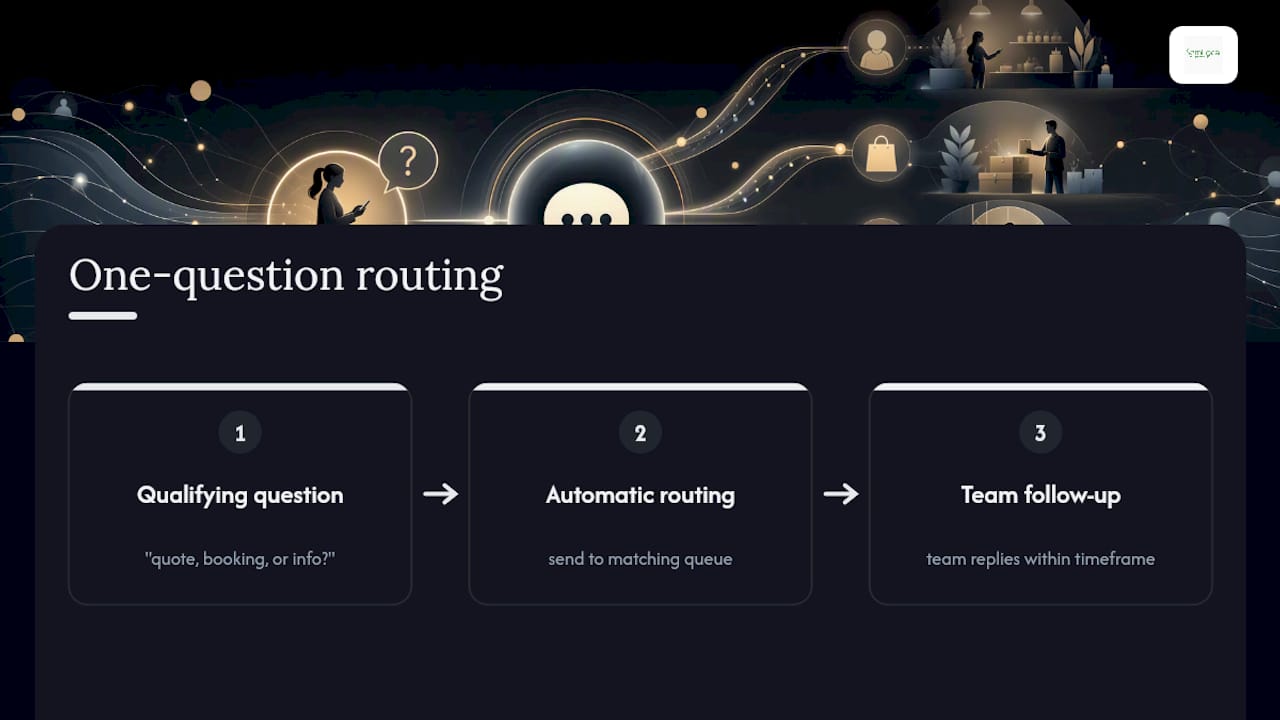
Good templates share three habits: they confirm receipt, they set a realistic time expectation, and they ask exactly one qualifying question. Best-practice guidance is consistent on this point, and one question is the ceiling, not the floor. Two questions in an automated greeting and most people simply stop replying.
Greeting and qualification (Instant Reply):
“Hi {{first_name}}, thanks for messaging [Business Name]! We usually reply within [X hours]. To help us answer faster, what are you looking for: a quote, a booking, or general information?”
Away message / after hours:
“Thanks for your message. We’re currently closed, but we’re open [days/hours] and will reply first thing. For urgent matters, call us on [number].”
Support acknowledgement:
“Got it, thanks. Your message has been logged and a member of the team will follow up within [timeframe]. In the meantime, our FAQ page might help: [link].”
Booking or appointment confirmation:
“Thanks for booking with [Business Name]! You’re confirmed for [date/time]. Need to change anything? Just reply here or call [number].”
Pro Tip: Keep the first line under roughly 80 characters if you can. That’s roughly what shows in the Messenger notification preview before the customer even opens the chat, so your most important information needs to sit right at the start.
A single well-placed qualifying question does more for lead quality than any amount of polished copy. It routes the enquiry the moment it lands, rather than leaving your team to work it out three messages later.
Why has your auto reply stopped working, and how do you fix it?
Most Messenger auto-reply failures trace back to one of five causes, and they’re almost always fixable in under ten minutes.
- Check the toggle first. It sounds obvious, but Instant Reply and Away Message get switched off during unrelated Page edits more often than owners expect. Go back into Inbox → Automations and confirm both are actually on.
- Test from a genuinely fresh account. Testing from an admin-linked profile can show you cached behaviour that doesn’t match what a real customer sees. Use a separate account with zero connection to your Page.
- Verify your business hours are current. Away Message only fires correctly if your set hours match reality. A stale hours setting from a previous season is a common silent failure.
- Look for a duplicate-system conflict. If you’ve connected a third-party tool alongside native Instant Reply, both can fire on the same message, sending two greetings at once. Meta’s own guidance on managing automations recommends running one greeting system at a time, not both simultaneously.
- Recheck Page roles and API permissions. If a third-party tool suddenly stops responding, an expired access token or a changed admin role is usually the cause. Reauthorise the connection from the app’s permissions screen.
There’s a policy limit worth understanding here too: Meta’s 24-hour messaging window restricts what automated follow-ups you can send once a customer’s last message passes that point, according to platform policy guidance. Outside that window, you’re generally limited to approved message tags for specific purposes rather than free-form automated follow-ups, which is why booking confirmations and support acknowledgements need to happen promptly, not days later.
After any fix, log what changed and confirm the behaviour with one more fresh-account test before you consider the issue closed.
Semlocal’s recommended rollout for Messenger auto replies
Start small and prove it works before you add complexity. Enable native Instant Reply and Away Message, set accurate business hours, and load your three most-asked questions into Saved FAQs. That’s a same-day setup with zero ongoing cost.
Then measure the right thing. Message count tells you almost nothing on its own; what matters is how many of those conversations turn into a call, a booking, or a quote request. Track conversions, not chat volume, over a two-week window before deciding anything needs to change.
Once you can see which enquiries convert, scale deliberately: add keyword-triggered replies for your highest-volume questions, pilot one comment-to-Messenger campaign on your best-performing post, then introduce conversational AI only once the return on that investment is visible in your booking numbers, not just theoretical. Our guidance on automating call answering covers the same measurement discipline for phone enquiries, and it applies just as directly here.
Why most Messenger automation advice gets the order backwards
Most guides on this topic jump straight to AI chatbots, as if native replies are a starter tier to graduate away from as fast as possible. That’s the wrong instinct for most small businesses. A tradesperson fielding a dozen messages a week doesn’t need intent detection; they need Instant Reply switched on correctly and a business hours setting that isn’t three months out of date.
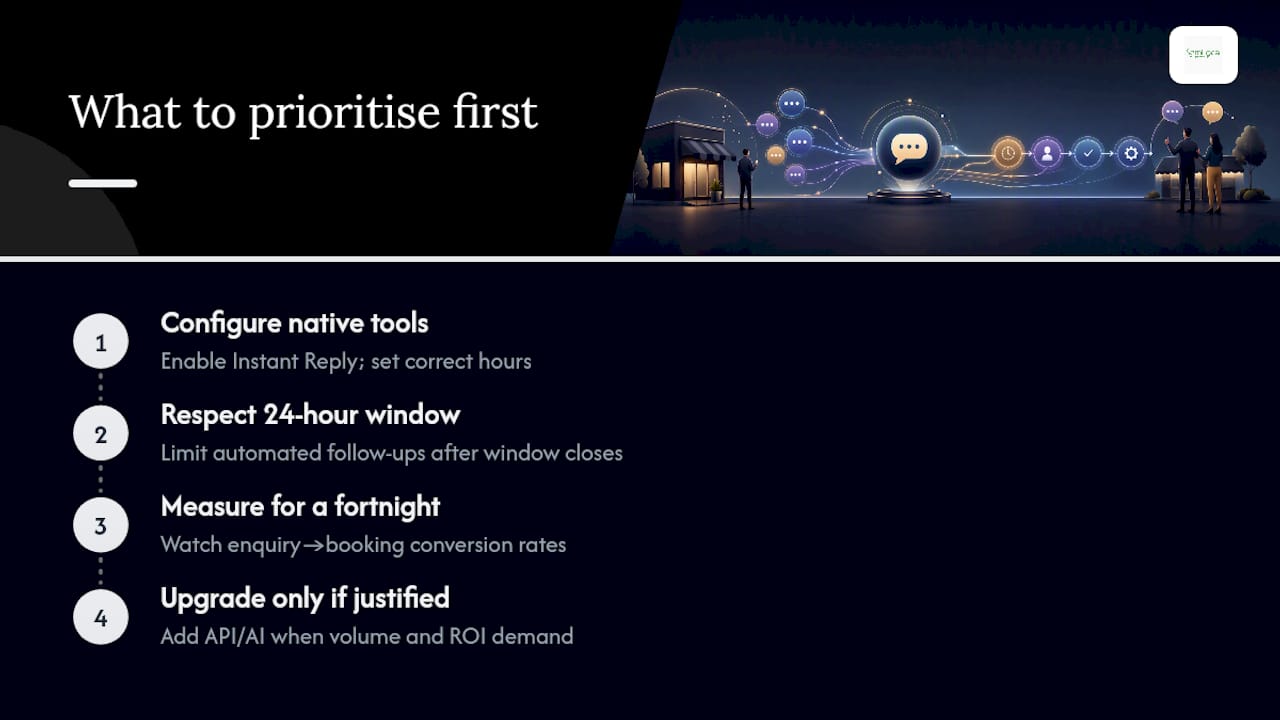
The conventional advice also underplays the 24-hour window’s practical bite. Businesses build elaborate automated follow-up sequences without realising Meta restricts what you can send once that window closes, then wonder why bookings quietly fall through weeks later.
What the reader should prioritise first is unglamorous: get the free native tools configured correctly, watch enquiry-to-booking conversion for a fortnight, and only then decide whether the complexity of an API tool earns its keep. Volume and measurable ROI should drive the upgrade decision, not the fear of looking behind on automation.
— Geoff
Prefer to hand Messenger automation to someone else?
If DIY setup, testing, and ongoing tweaking isn’t where you want to spend your time, Semlocal is the alternative to building it yourself. We audit your current Messenger setup, configure Instant Reply and Away Message correctly, train a knowledge base from your actual FAQs, and set escalation rules so nothing important gets missed while you’re busy running the business.
This suits service businesses that need reliable lead capture without a full-time person watching the inbox: hospitality, home services, cleaning, and other sectors where a missed enquiry is a missed booking. A managed setup means you get the upgrade path from native replies to conversational AI without doing the trial-and-error yourself, and ongoing optimisation keeps it working as your enquiry volume changes.
Our AI Receptionist service covers this exact ground for Messenger, chat, and beyond, and our AI Lead Generation work ties the automation directly to bookings rather than just message counts. The next step is a short audit call to see where your current setup is leaking enquiries. Get in touch with Semlocal to book one.
Sources
- Set up Inbox Automations in Meta Business Suite on Desktop
- Facebook Messenger Auto-Reply: Samples and Best Practices | SendPulse
- How to Automate Facebook Messenger Replies for Business
FAQ
How do you automate Facebook Messenger replies?
Enable Instant Reply and Away Message inside Meta Business Suite under Inbox → Automations for free, static automation. For conversational or keyword-triggered automation, connect an approved Messenger Platform API tool to your Page instead.
How do you turn off automated replies on Facebook Messenger?
Go to Inbox → Automations in Meta Business Suite, or Page settings directly, and toggle Instant Reply or Away Message off. Meta’s help centre confirms this toggle can be switched on or off at any time without losing your saved message text.
Can you set up an auto response for a personal Messenger account?
No. Native Instant Reply, Away Message, and Saved FAQs are Page features built for businesses, not personal profiles. If you need automated responses on a personal account, you’d need a separate third-party app, which carries its own policy risk if it isn’t built on the official API.
How do you set up an automatic reply in Messenger?
Open Meta Business Suite, go to Inbox → Automations, and switch on Instant Reply for a first-response message or Away Message for outside business hours. Both take a few minutes to configure and start working immediately once your text is saved.
Does Semlocal offer managed Messenger automation?
Yes. Semlocal’s AI Receptionist service covers Messenger auto-reply setup, knowledge-base training, and escalation rules as part of a fully managed package, with pricing available on request.