Call conversion tracking is the process of attributing phone calls back to the ad clicks, keywords, or web pages that caused them, so you can measure and bid on genuine business outcomes. There are three main methods: tracking calls made directly from your ads, tracking calls made from your website using dynamic number insertion or Google forwarding numbers, and importing offline conversions from your CRM. Pick the method that matches how your business actually takes calls, then build from there.
TL;DR:
- Businesses should use all three call tracking methods—ad clicks, website calls, and offline imports—for a comprehensive view of call performance and conversion quality.
- Proper setup requires specific access to Google Ads, website tags, phone numbers in HTML, and decision-making on what constitutes a valuable conversion.
- Call tracking signals should be filtered by call duration, quality scoring, and conversion value to prioritize genuine, high-value leads.
- Testing involves verifying number swaps with live calls, ensuring correct formatting, and avoiding common setup issues like cookie persistence and incorrect HTML placement.
- Integrating call data into bidding strategies and CRM systems enables more accurate measurement of return on ad spend and helps optimize campaigns for valuable customer actions.
Table of Contents
- What you need before you start setting up call tracking
- The three types of call conversions and when to use each
- How do you set up call conversion tracking in Google Ads?
- How do you import offline call conversions?
- Setting quality filters so you optimise for good calls, not just calls
- How do you test and troubleshoot call tracking setup?
- Turning call data into campaign optimisation
- What does a managed call tracking setup include?
- Three quick wins to start this month
- Get your call tracking set up properly, without the trial and error
- Sources
What you need before you start setting up call tracking
Before touching any settings, gather the access and information you’ll need. Missing one of these is the most common reason setup stalls halfway through.
- Google Ads account access with Admin or Standard permissions to create conversion actions and enable call assets
- Website editing rights or Google Tag Manager access so you (or a developer) can add tracking snippets
- A phone number in your site’s HTML text, not embedded in an image, plus export or API access from your CRM if you’ll import offline conversions
- A decision on what counts as a conversion: a lead enquiry, a confirmed sale, or a booked appointment
That last point matters more than it sounds. Get it wrong and your bidding will optimise for the wrong outcome for months.
The three types of call conversions and when to use each
Each method measures something different, and the right choice depends on how your business handles enquiries and how much data infrastructure you already have.
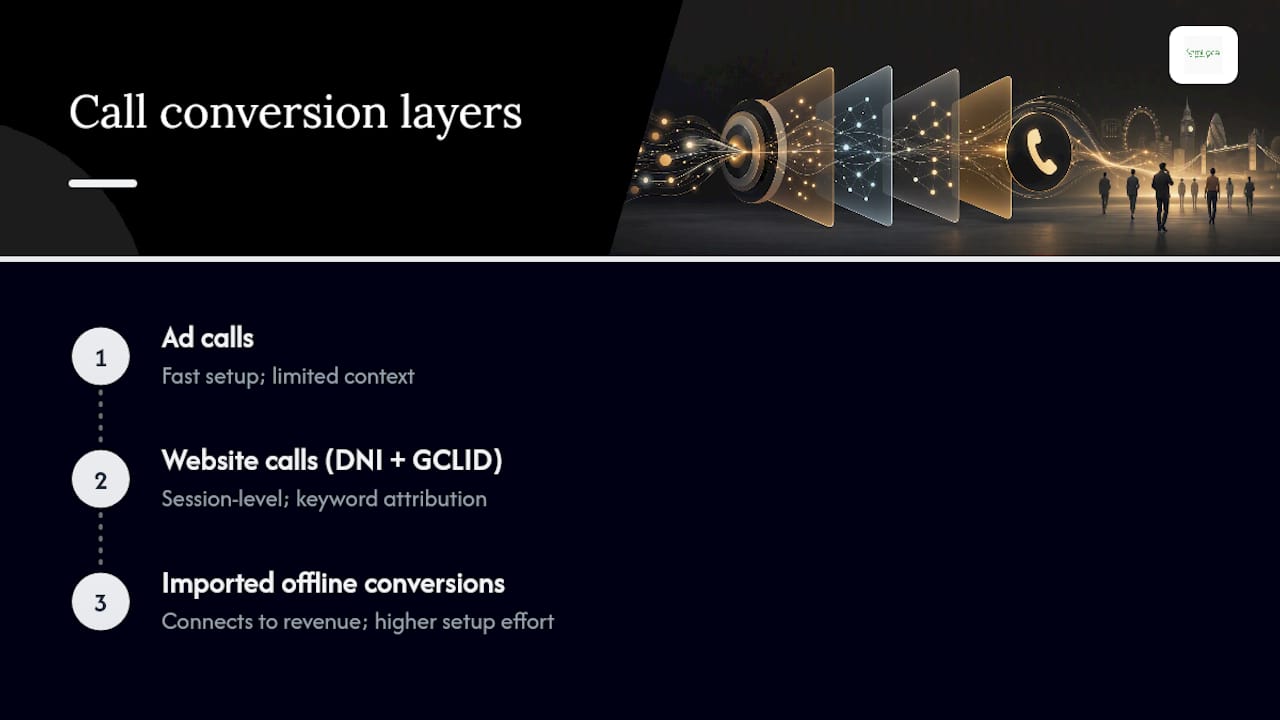
Calls from ads track click-to-call buttons and call assets directly inside Google Ads. These are the fastest to switch on, since Google’s own phone call conversion tracking guidance explains you simply enable call reporting and set a minimum call duration. The trade off is limited context. You know an ad triggered the call, but not much about the visitor’s journey beforehand.
Calls from your website, tracked via dynamic number insertion (DNI) or a Google forwarding number, give you session-level attribution. Combine DNI with a GCLID (the click identifier Google Ads passes with every ad click), and you can trace a call right back to the specific keyword that brought the visitor in. This is the method most digital marketers lean on for genuine keyword-level optimisation.
Imported or offline conversions connect calls to what actually happened afterwards, a completed sale, a signed contract, a booked appointment, pulled from your CRM or uploaded manually. This is the only method that lets you optimise bidding for revenue rather than call volume, but it takes more setup work and ongoing data hygiene.
Most businesses running paid ads should eventually use all three together, layered rather than chosen exclusively.
How do you set up call conversion tracking in Google Ads?
Setting up tracking properly takes three separate builds: the native Google Ads conversion action, the on-site global site tag and phone snippet (or Tag Manager equivalent), and your DNI configuration. Here’s the order that avoids rework.
- Create a conversion action in Google Ads. Go to Goals > Conversions > New conversion action, and choose “Phone calls” as the source. You’ll then pick between “Calls from ads”, “Calls to a phone number on your website”, or “Calls from your uploads”.
- Enable call assets and call reporting. For calls from ads, add a call asset to your campaign, fill in the conversion name, choose a category (lead, purchase, or similar), and decide whether to count every call or only calls past a minimum duration.
- Install the global site tag and phone snippet. For website call tracking, Google’s setup instructions walk through adding the base site tag plus a phone number snippet that swaps your displayed number for a Google forwarding number when a visitor arrives from an ad click.
- Or configure it through Google Tag Manager. If you already run GTM, create a tag using the conversion ID and conversion label from your Ads account, set the trigger to fire on all relevant pages, and preview it before publishing. Watch the number format carefully here, more on that below.
- Decide between Google forwarding numbers and a third-party DNI provider. Google’s own forwarding numbers are free and built into the site tag, but they only tell you a call came from an ad, not the specific keyword or landing page. A dedicated DNI platform assigns a pool of numbers per session, which gives keyword-level attribution but needs proper pool sizing to avoid two visitors accidentally sharing the same number at once.
Pro Tip: If you’re on Google Tag Manager, enter your phone number in national format without the leading plus sign. GTM’s snippet handling can mangle international “+44” formats and display the wrong number to visitors, which quietly breaks the whole setup without throwing an error.
Get steps one and two right first. A conversion action with sloppy category or value settings will still “work”, technically, but it will feed Google’s bidding algorithms the wrong signal from day one.
How do you import offline call conversions?
Importing offline conversions is how you tell Google Ads what actually happened after the phone rang, closed sale, no show, or booked job, rather than just that a call took place.
Each import needs specific fields:
- Caller ID in E.164 format (the international standard, e.g. +447911123456)
- Call start time, matched to the timestamp recorded in your ad account
- Conversion action resource name, referencing the specific conversion action you created
- Conversion time, plus optional conversion value and currency if you’re tracking revenue
You can upload via a CSV or Excel template, a scheduled Google Sheets connection, or a HTTPS/SFTP feed for larger operations. Developers working at scale often use the Google Ads API directly, which supports partial_failure handling so one bad row doesn’t kill an entire batch upload. Expect a processing delay of up to a few hours before uploaded conversions appear in your account.
One warning worth repeating: imported conversions cannot be deleted once uploaded. Test with a small batch of five or ten records first, confirm the data lands correctly, then scale up.
Setting quality filters so you optimise for good calls, not just calls
A conversion count on its own tells you nothing about whether the call was any good. A 12-second call and a 12-minute sales consultation both count as “one call” unless you build in filters.
- Set a minimum call duration that reflects a genuine enquiry for your business, often somewhere between 30 and 60 seconds for service businesses, longer for high-value sales calls
- Use AI-qualified call leads where Google’s automatic recording analysis is available, which scores call quality without you manually listening to every recording
- Set conversion value ranges so bidding can prioritise higher-value calls over low-value ones, rather than treating every conversion equally
- Route recordings and transcripts into your CRM for manual review on the calls your filters flag as borderline
Google’s AI-qualified call leads feature analyses recorded calls automatically to separate genuine leads from wrong numbers and spam, though the recording analysis is only available in certain markets, so check coverage before relying on it as your sole quality signal. Where it’s not available, duration thresholds remain your main quality lever.
How do you test and troubleshoot call tracking setup?
Run a live test before trusting any of this with real ad spend. Search for your own ad, click it, land on your site, and confirm the displayed number has swapped to a forwarding number. Call that number and check the conversion appears in Google Ads within a few hours.
- Delete the
gwcccookie between repeat tests, otherwise your browser keeps reissuing the same forwarding number and you won’t see fresh swaps - Check for the plus-sign formatting issue in GTM, a frequent cause of numbers displaying incorrectly or failing to swap at all
- Confirm your phone number sits in HTML text, not an image, since DNI scripts can’t detect or replace numbers rendered as graphics
- Size your DNI pool correctly: too small a pool means two simultaneous visitors get assigned the same number, corrupting attribution for both
- Check timezone and date formats on imports, mismatches here are the single most common reason offline conversions fail to match existing sessions
Pro Tip: Run your live test from a mobile connection as well as desktop. Mobile browsers handle the tel: click-to-call snippet differently, and a setup that swaps numbers correctly on desktop can silently fail on the device most callers actually use.
Turning call data into campaign optimisation
Tracking calls is only useful if the data actually changes what you spend money on. Here’s where the payoff shows up.
- Feed offline and imported conversions into your main “Conversions” column so Smart Bidding and other automated strategies train on real outcomes, not just click volume
- Attach conversion values to calls so bidding algorithms learn to chase your £500 job leads harder than your £50 enquiries
- Pull reports comparing keywords and landing pages by qualified call volume, not raw call count, since the keyword generating the most calls often isn’t the one generating the most sales
- Close the loop between call data and CRM outcomes to calculate genuine return on ad spend, rather than a rough proxy based on call numbers alone
Call-tracking platforms built for this workflow show how visitor-level data, source, landing page, pages viewed before the call, can be passed back into Google Ads to sharpen bidding further. That closed loop is what separates businesses reporting on vanity call counts from businesses reporting on genuine cost per qualified lead.
If you’re already using AI-powered call analysis to score lead quality, feeding that scoring back into your conversion values gives Google’s bidding algorithms an even sharper signal to optimise against.
What does a managed call tracking setup include?
Building all of this properly, conversion actions, DNI, offline imports, quality filters, takes real time, and most small business owners don’t have a spare fortnight to spend on Tag Manager debugging.
A managed setup typically covers:
- Faster CRM integration than most in-house teams can manage alone, since the connectors and field mapping are usually already built
- Multi-domain DNI configuration for businesses running several landing pages or microsites across different campaigns
- Ongoing testing and troubleshooting so number swaps and imports keep working as your site and CRM change over time
- AI-based call analysis layered on top, so lead quality scoring happens automatically rather than through manual listening
Semlocal manages Google Business Profiles, local SEO and paid ad accounts for UK service businesses, and AI voice agent integration sits alongside that, useful when you want calls not just tracked but handled and qualified automatically. A sensible deliverable structure looks like: an audit of your current setup, implementation of the missing tracking pieces, a documented test plan, then monthly optimisation reporting against your actual call outcomes.
Three quick wins to start this month
You don’t need the full build to start seeing better data. Enable “Calls from ads” on your single best-performing campaign first, it takes under an hour and gives you an immediate quality signal. Next, install DNI or Google forwarding on your highest-traffic landing page rather than your whole site. Finally, start importing your closed, high-value sales as offline conversions, even manually at first, so your bidding algorithm finally learns what a genuinely valuable call looks like versus one that just fills your call log.
— Geoff
Get your call tracking set up properly, without the trial and error
A practical route for businesses who’d rather not spend weeks debugging Tag Manager triggers and GCLID mismatches themselves is available. Where a DIY build means piecing together conversion actions, DNI snippets and CRM imports on your own, Semlocal handles the full setup, verification and ongoing optimisation as part of managing your local presence, so the calls your Google Business Profile and ads generate actually get measured and improved month on month.
This includes tying call outcomes back into paid ad accounts so bidding trains on genuine leads rather than raw call volume, an approach detailed further in a guide to aligning Google Ads with business goals. If you want assistance auditing your current tracking gaps and fixing them properly, you can request a local audit to get a clear plan for what’s missing before it costs you another month of guesswork.
Sources
- About phone call conversion tracking – Google Ads Help
- Dynamic number insertion overview – CallRail Help Center