If you visit or deliver to customers and they never come to your premises, set your profile up as a service-area business and hide your public address. A service-area profile tells Google (and searchers) which areas you cover without showing a fixed shop or office location. A hybrid profile does both: it welcomes visitors and travels to customers. A storefront simply shows your address because people walk in.
The action to take right now:
- Go to Edit profile → Location → Service area
- Turn off the public address if customers never visit you
- Add the specific towns, cities or postcodes you genuinely cover
TL;DR:
- Use a service-area profile and hide your address if customers do not visit your physical location regularly.
- Limit your service-area listings to up to 20 accurately chosen towns or postal codes within about a two-hour drive.
- Only toggle off showing your address if your business is home-based or mobile; shops and offices should keep their address visible.
- Re-verify your profile after any address change or profile update to prevent unintentional removal or suppression in search results.
- Focus on maintaining accurate, relevant service areas and active engagement, as relevance and prominence outweigh merely adding numerous locations.
Table of Contents
- What is a service area business on Google, exactly?
- How do you add or edit service areas in Google Business Profile?
- How and when should you hide your business address?
- What are the rules and limits for service areas?
- When does Google ask you to re‑verify your profile?
- How do you get more enquiries from a service-area profile?
- What Google’s rules mean for busy trade owners
- Why hire a managed Google Business Profile service?
- Key Takeaways
- Sources
What is a service area business on Google, exactly?
Google sorts every profile into one of three buckets: service-area, hybrid or storefront. Get the classification wrong and you risk a profile flag, a suspended listing, or simply invisibility in the results that matter to you.
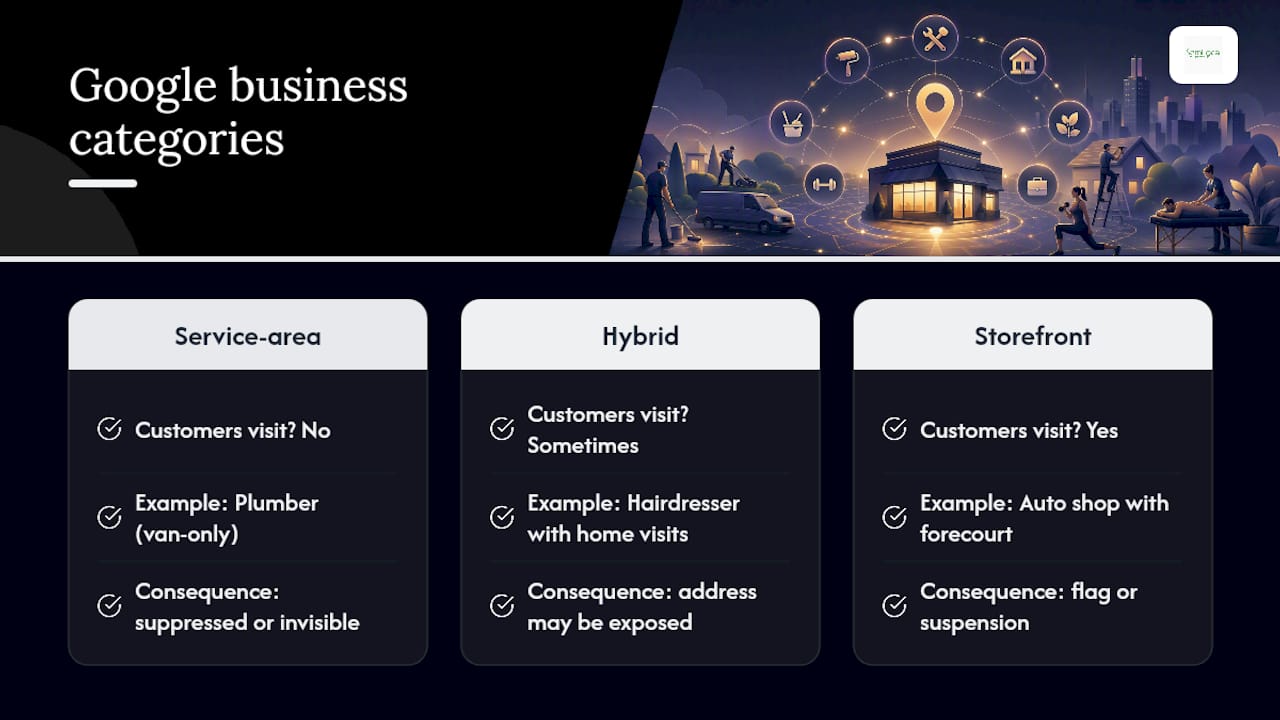
The test is simple: do customers ever come to your address? A plumber who works from a van and never receives visitors is a service-area business. A hairdresser who cuts hair in a rented chair but also does home visits is hybrid. An auto shop with a forecourt, staffed hours and a roadside recovery van is hybrid too, because customers do physically turn up.
Pro Tip: If you’re unsure, ask whether a stranger could reasonably knock on your door expecting service. If yes, you’re hybrid or storefront, not pure service-area.
Picking the wrong type usually means an address stays visible when it shouldn’t, or a profile gets suppressed for looking like a fake location. Fix it by revisiting the Business Profile for service businesses guidance before you touch anything else.
How do you add or edit service areas in Google Business Profile?
Adding service areas takes minutes once you know where to look:
- Sign into your Google Business Profile and open Edit profile
- Select Location, then find the Service area section
- Search and add each city, postal code or named place you actually serve
- Remove any area you no longer cover
- Save your changes
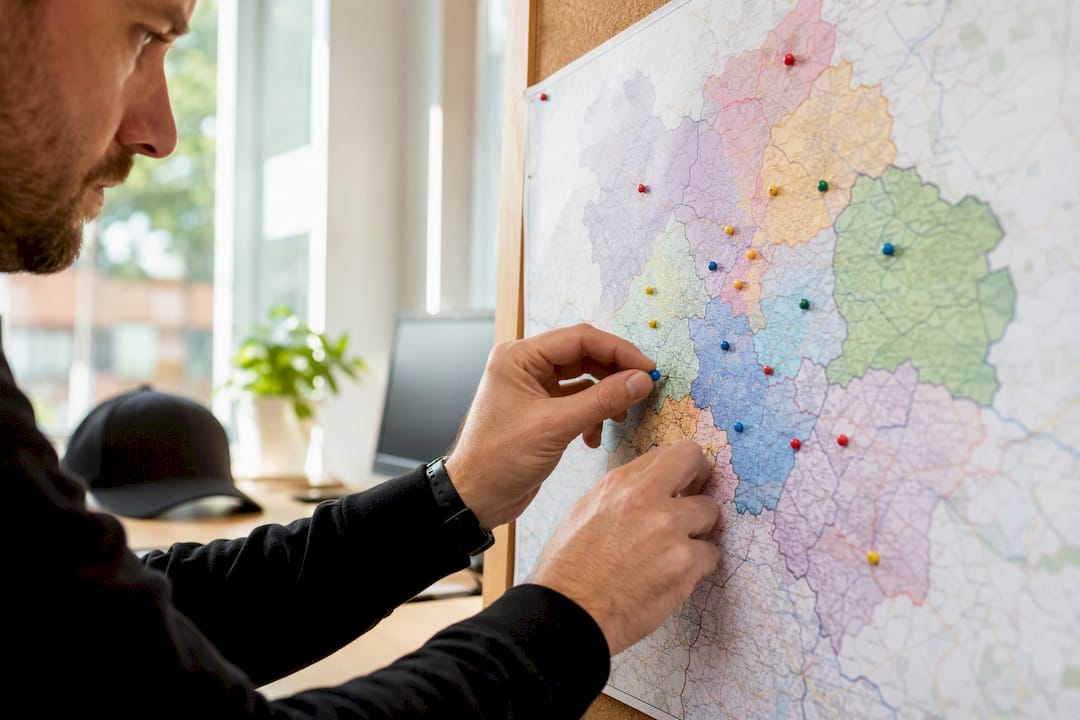
You can list up to 20 service areas using cities, postal codes or other named places, and Google will not let you draw a radius circle around your base. Named places only.
The temptation is to fill all 20 slots to look bigger. Resist it. A gardener covering three boroughs looks more credible listing three boroughs than padding the list with towns nobody on the team has ever driven to.
Pro Tip: Pick the smallest accurate set first, then expand only when your team’s actual coverage genuinely grows.
How and when should you hide your business address?
Turn off Show business address to customers inside Location settings if clients never visit you. That single toggle, covered in Google’s guide to editing your Business Profile, is what separates a service-area listing from a storefront in Google’s eyes.
Hiding is right for:
- Home-based trades: electricians, cleaners, mobile pet groomers
- Businesses with no reception area or customer-facing premises
Hiding is wrong for:
- Shops, salons or offices customers regularly walk into
- Any business that would confuse a customer turning up expecting a front door
Once hidden, your service areas do the talking. Leave that section empty, though, and Google may choose a local area for you, which is rarely the outcome you’d have picked yourself.
What are the rules and limits for service areas?
Google gives you named places, not a radius. There’s no slider, no “within 15 miles” setting. You add cities, postcodes or districts individually, and the practical limit is 20 service areas per profile.
Boundaries matter more than most owners assume. Google’s own guidance suggests keeping your overall coverage within roughly two hours’ driving time from your base. List a town six hours away and you’re not breaking a hard rule, but you’re stretching credibility with both Google and anyone reading your profile.
- No editable radius, only named locations
- Maximum of 20 service areas
- Stick close to a realistic driving boundary, generally within about two hours
Here’s the part that trips people up: listing an area doesn’t guarantee you’ll rank there. A service area tells customers and Google where you operate, but local ranking still depends on relevance, distance and prominence, not just on whether a postcode appears in your settings. Adding Manchester to your list doesn’t make you visible in Manchester if a searcher there is ten times closer to a competitor with stronger reviews and a completer profile.
Treat your service-area list as an accurate map of where your vans already go, not a wish list of where you’d like more work.
When does Google ask you to re‑verify your profile?
Verification isn’t a one-off box you tick and forget. Certain changes trigger it again, and missing that step is one of the most common reasons a profile suddenly stops appearing in search.
- Check whether you’ve recently moved or changed your registered address, since changing an address after verification can prompt Google to ask for re-verification
- Confirm your map pin sits on the correct building, not a neighbouring one or the middle of a roundabout
- Search your business name to rule out duplicate listings competing against your own profile
- If your address still shows publicly after you’ve toggled it off, clear your cache and recheck the Location settings, then wait 24 hours for the change to propagate
- Contact Google Business Profile support directly if a problem persists beyond a few days
Pro Tip: Keep your real operating address in Google’s records for verification purposes even after you hide it from public view. Home-based trades commonly do this to stay compliant without exposing a residential address.
A free map-pack audit is a useful way to catch pin errors and duplicate listings you might otherwise miss.
How do you get more enquiries from a service-area profile?
Accuracy beats aspiration. The service areas you list should match how your business actually works, not how big you’d like it to look, and that discipline pays off in both compliance and enquiry volume.
- Keep your service-area list, categories and services aligned so Google understands exactly what you do and where
- Maintain consistent name, address and phone details everywhere your business appears online
- Collect reviews actively and reply to every one, since fresh reviews are one of the strongest signals customers and Google both respond to
- Post updates and add real photos of completed jobs rather than stock imagery
- Build a landing page for each major service area if you cover more than two or three towns, and consider Local Service Ads as a paid complement to organic visibility
Small, consistent maintenance beats a one-off setup every time. A profile that’s updated monthly with new photos and review replies will usually outperform a static one, even if the static one was set up perfectly on day one.
| Point | Details |
|---|---|
| Classify correctly first | Use the customer-visit test before touching any address or service-area setting. |
| Hide the address deliberately | Only toggle off the public address if customers genuinely never visit your premises. |
| Stay within realistic boundaries | Keep service areas within Google’s roughly two-hour driving guideline rather than listing distant towns. |
| Service areas inform, not guarantee | Ranking still depends on relevance, distance and prominence, not just being listed. |
What Google’s rules mean for busy trade owners
Most advice on this topic tells small business owners to “add as many service areas as possible” to maximise reach. That’s backwards, and it’s the single worst piece of conventional wisdom circulating in this space. Google’s own limits and guidance point the other way: a compact, accurate list of areas you genuinely cover performs better than a padded one, because relevance and prominence carry more weight than sheer breadth.
The bigger gap I see is between what owners think verification is (a one-time task) and what it actually is (an ongoing dependency triggered by address changes, profile edits and even how your map pin sits relative to your real location). Businesses that treat their profile as “set and forget” are usually the ones that discover, months later, that their address quietly reappeared or their listing vanished from a city they’d been counting on.
If you take one thing from this, it’s sequencing: get your business type right first, verify properly second, then add service areas that match your actual operating pattern. Chasing enquiries before the fundamentals are correct is how profiles get suppressed.
— Geoff
Why hire a managed Google Business Profile service?
Getting the classification, verification and service-area settings right the first time saves weeks of trial and error, and that’s exactly where a managed service earns its keep. Semlocal handles the parts owners most often get wrong: confirming your real operating address for verification, setting public visibility correctly, building a compact and accurate service-area list, and then layering on review capture and local landing pages so the profile actually converts into calls.
DIY works fine if you have an afternoon spare and one straightforward location. It stops working the moment you’re juggling multiple service areas, a recent move, or a profile that’s already been flagged. That’s when expert management pays for itself, particularly for businesses expanding into new towns or recovering from a suspended listing.
If your profile needs sorting properly, start with Semlocal’s Google Business Profile Manager and get your verification, service areas and visibility settings handled end to end.
Key Takeaways
Getting classification, verification and service-area accuracy right, in that order, determines whether a Google Business Profile generates enquiries or quietly disappears from local search.
| Point | Details |
|---|---|
| Classify before editing | Confirm whether you’re service-area, hybrid or storefront using the customer-visit test. |
| Hide the address correctly | Toggle off public visibility only when customers never visit your premises. |
| Add a compact service-area list | List up to 20 named places, staying within roughly two hours’ driving time. |
| Re-verify after address changes | Moving or editing your address after verification can trigger a fresh verification request. |
| Consider managed support | Semlocal’s Google Business Profile Manager handles verification, service areas and ongoing optimisation. |